
I've spent years building and securing online stores (more on that in Part 1 of this series). And the one thought that's followed me through all of it is: if I were a customer, I'd have almost no way of knowing whether any of this was built properly.
That's the uncomfortable reality of shopping online. You can read a store's reviews. You can compare prices. You can check how fast they deliver. But you cannot see how they handle your data. You can't tell if your credit card number is being stored in a spreadsheet somewhere or if your password is protected the way it should be. A beautiful website tells you nothing about what's happening behind the scenes. Some of the prettiest stores in the industry have the worst security practices underneath. And from the outside, you'd never know.
The gap between what online stores should be doing and what they actually do is enormous. And the person who pays the price for it is almost always the customer.
So this post is for you - the person shopping online. Not for developers, not for product managers. I've already written posts for them (Part 1 and Part 2 of this series). This one is for anyone who's ever entered their card details into a website and hoped for the best. Your mum, your friend who just got their first debit card, the person buying a birthday gift at midnight from a store they found through an Instagram ad.
I'm not trying to make you paranoid. I'm trying to give you a handful of things you can check - most of them in under a minute - so that you can make better decisions about where you hand over your money and your personal information.
1. The Padlock Is the Bare Minimum (and It's Not Enough)
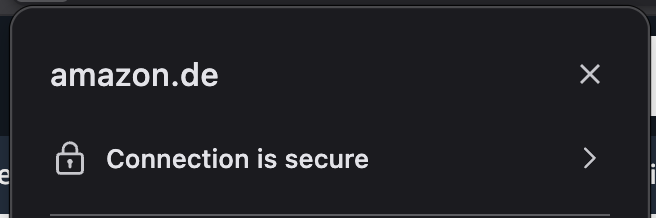
You've probably heard this one before: "Look for the padlock in the address bar." That padlock means the connection between your browser and the website is encrypted. That's good, but it's all it means. It doesn't tell you the company is trustworthy or that they store your data safely. Getting that padlock is trivially easy these days - scam sites have them too.
So don't treat the padlock as a sign that a site is safe. Treat its absence as a sign that something is very wrong. If there's no padlock, close the tab. If there is one, you've still got a few more things to check.
2. Do They Let You Check Out as a Guest?
This is the single easiest thing you can do to protect yourself online, and almost nobody talks about it.
When a store forces you to create an account before you can buy anything, they're collecting and storing your data whether you wanted them to or not. Your name, your email, your address, your order history - and sometimes your payment details. All of it sits on their servers. And if they ever get hacked, all of it is at risk.
Guest checkout changes that equation. When you check out as a guest, the store processes your order but stores far less information about you. Less data stored means less data that can be stolen. It's that simple.
So if a store offers guest checkout, use it. Especially if it's a store you're only buying from once, or a store you don't fully trust yet. You can always create an account later if you become a regular customer. But there's no reason to hand over more data than necessary for a single purchase.
3. Can You Enable Two-Factor Authentication?
If you do create an account on an online store, look for something called two-factor authentication - sometimes written as 2FA or MFA. Here's what it means in plain language: after you enter your password, the site asks for a second proof that it's really you. Usually that's a short code sent to your phone, or generated by an app on your phone. So even if someone steals your password, they still can't get into your account because they don't have your phone.
If a store offers this, turn it on. It's a genuinely good sign. It means someone on their team has thought about security beyond the basics and has invested time and money into giving you the option to protect yourself.
If a store doesn't offer it - and many don't - then at the very least, use a password that you don't use anywhere else. I know that sounds tedious. Nobody wants to remember a different password for every website. That's exactly why password managers exist. Tools like 1Password, NordPass, Bitwarden, or even the one built into your phone will generate and remember strong, unique passwords for every site you use. You only need to remember one master password. It's one of those small investments that pays for itself the first time one of your accounts gets targeted.
4. What Does Their Privacy Policy Actually Say?
Nobody reads privacy policies. I know. Companies know too - they're counting on it.
But you don't need to read the whole thing. You just need to search for a few specific words. On most browsers, you can press Ctrl+F (or Cmd+F on a Mac) and search within the page. Here's what to look for:
"Third parties" or "share." This tells you who else gets your data. Some sharing is normal - they might share your address with a delivery company, for example. But if the language is vague or the list of third parties is suspiciously long, that's worth noticing.
"Retention." This tells you how long they keep your data. A good privacy policy will give you a specific timeframe. A bad one won't mention it at all.
"Delete" or "request." This tells you whether you can ask them to remove your data. In many countries, you have a legal right to this, but it's good to see that the company has actually thought about it and documented how to do it.
Now, the red flags. If a store's privacy policy is one paragraph long, or if it reads like it was copied wholesale from some template and never adapted, or - worst of all - if there isn't one at all, that should give you pause. A privacy policy isn't just a legal formality. It's a signal of whether the company has thought seriously about how they handle your information. A detailed policy that mentions specific regulations like GDPR (the European data protection law) and explains exactly what data they collect and why is a genuinely good sign.
5. How Do They Handle Your Payment?
This one matters a lot, and it's easier to check than you might think.
When you get to the checkout page and it's time to enter your card details, pay attention to what happens. Does the payment form look like it belongs to a company you recognise - Stripe, PayPal, Klarna, Square? Does the page redirect you to PayPal or your bank to complete the payment? If so, that's a good thing. It means your card details are being handled by a specialist payment company, not by the store itself. Your card number never touches the store's servers. The store never even sees it.
On the other hand, if you're typing your card number directly into a form on a small or unfamiliar website, and there's no indication that a third-party payment provider is involved, that's higher risk. It means the store itself is handling your card data, and you're trusting that they've set up their systems properly to protect it.
This is also why using PayPal, Apple Pay, or Google Pay is worth considering when the option is available. These services act as a wall between you and the store. The store gets paid, you get your order, and they never see your actual card number. It's one of the simplest ways to add a layer of protection without doing anything complicated.
Another option worth knowing about: virtual or disposable card numbers. Banks and services like Revolut, Monzo, and Privacy.com let you generate a one-time card number for a single purchase. You use it at checkout, and even if the store gets breached later, the card number is useless - it's already expired. If your bank offers this, it's one of the best protections available for shopping at stores you're not sure about.
6. Check If They've Been Breached Before
There's a free tool called Have I Been Pwned - the name comes from gaming slang for being defeated or compromised, but it's an incredibly useful website. It's run by Troy Hunt, a well-respected security researcher, and it lets you type in your email address to see if it has appeared in any known data breaches.
I'd recommend doing two things with it. First, check your own email. If it shows up in breaches, don't panic - it's extremely common. But do change your password on any account where you used the same email and password combination. This is exactly the kind of situation where having unique passwords for each site saves you.
Second, if you're about to buy from a store you're not sure about, a quick search can tell you if that company has been breached before. A past breach isn't automatically disqualifying - what matters is how the company handled it. Did they notify their customers? Did they explain what happened and what they did to fix it? Or did they go quiet and hope nobody noticed? The response tells you more than the breach itself.
And if you discover that your details have been compromised in a breach, act quickly. Change your password on that site and any other site where you used the same one. Check your bank statements for unfamiliar transactions. Contact your bank to let them know - they can flag your account for suspicious activity or issue you a new card. If the breach involved personal information like your name and address, consider placing a fraud alert or credit freeze with your credit reference agency. It feels like a lot, but catching it early makes all the difference.
7. Trust Your Gut (and Your Browser)
Sometimes the best security tool you have is your own instinct.
If your browser throws up a warning about a website - a big red screen saying the site might not be safe - listen to it. Browsers don't do that for fun. Something is wrong, and clicking through that warning is rarely worth the risk.
If a deal looks impossibly good - designer items at a fraction of the retail price from a store you've never heard of - be honest with yourself about what's more likely: that you've found an incredible bargain, or that someone has set up a fake storefront to collect card details. These scam sites are getting better and better at looking legitimate, but the prices usually give them away.
And if a website looks abandoned - broken images, links that go nowhere, a copyright notice that says 2019 - then the security behind that site is probably just as neglected. A company that isn't maintaining its storefront almost certainly isn't maintaining its security either.
When in doubt, stick to stores you know. And if you want to try a new store, take thirty seconds to search for reviews on independent sites first. Not testimonials on the store's own website - those can be faked. Look for reviews on third-party platforms where real customers share their experiences
You Shouldn't Need a Cybersecurity Degree to Shop Online Safely
But right now, in many ways, the industry puts the burden on you to figure out who you can trust. That frustrates me, honestly. It's something I think about a lot - this idea that we've built a world where people are expected to hand over their most sensitive financial information to websites, and the only protection most people have is hope.
These checks won't make you invincible. But they take less than a minute, and they can save you from handing your payment details to a store that isn't protecting them. The padlock check, the guest checkout habit, a quick look at the privacy policy, paying attention to how your payment is processed - none of this requires technical knowledge. It just requires a little bit of awareness.
And if you run an online store yourself, or you work on one, I'd encourage you to read the first two parts of this series. Part 1 is a security checklist for product managers and developers - the things your customers are hoping you've already done. Part 2 goes deeper into the technical implementation for senior developers. Because the truth is, the best outcome isn't a world where shoppers have to protect themselves from the stores they buy from. The best outcome is a world where the stores do the protecting, and the shoppers don't have to think about it at all.
We're not there yet. But until we are, I hope this helps.
This is Part 3 of a three-part series on e-commerce security. Part 1: What Three Years of Building E-Commerce Stores Taught Me About Security is a checklist for teams building online stores. Part 2: Beyond the Checklist is a technical deep-dive for senior developers. This post is for everyone else - the people those stores are built to serve.